

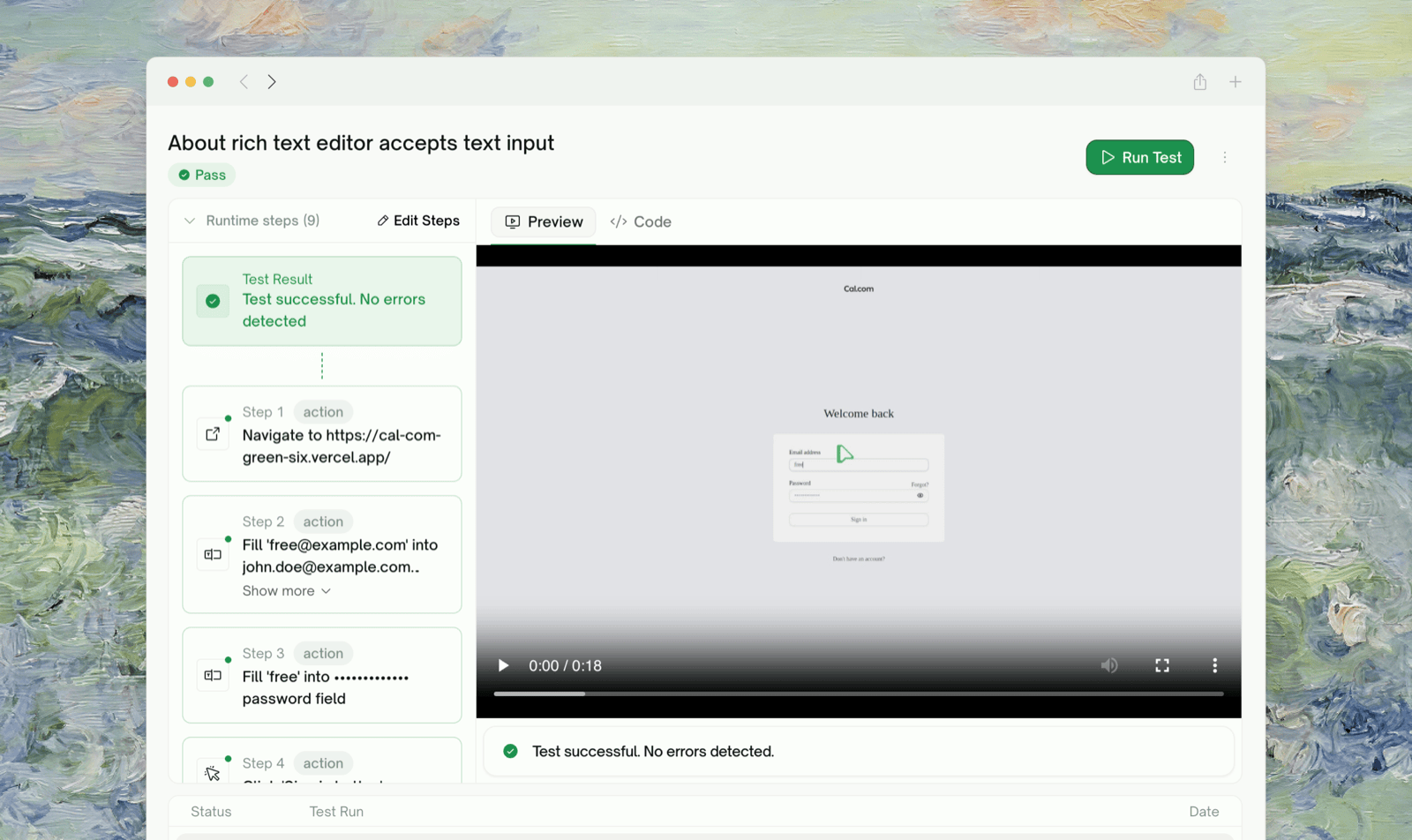
What Step-by-Step Shows
The Steps panel in the left column of the test detail page lists every action and assertion from the run. A Test Result block at the top shows the outcome (PASSED / FAILED / BLOCKED / RUNNING). Click a step to load the HTML snapshot of the page at that moment in the right pane.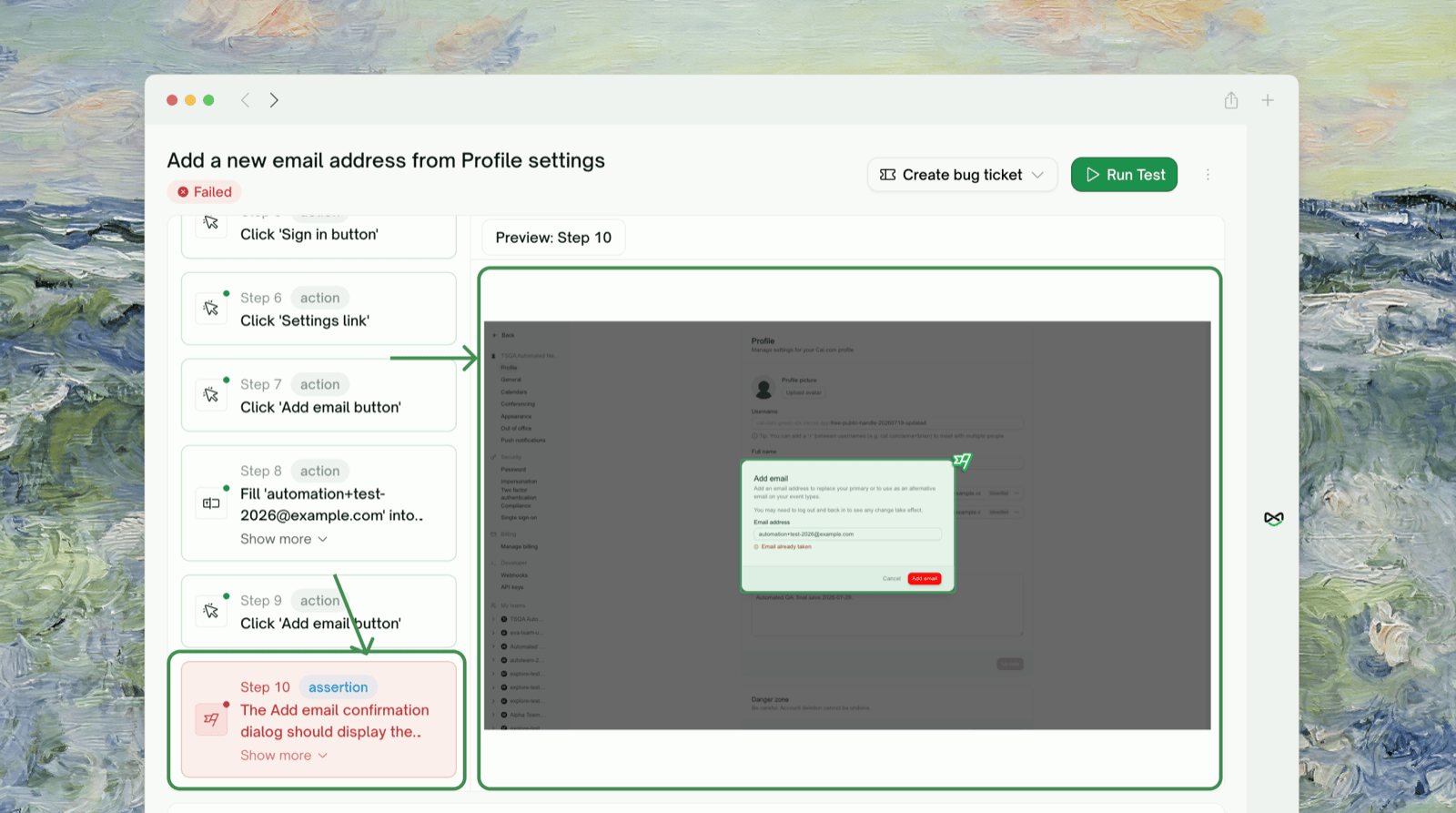
Where to Find It
Click any UI test in the project’s test list to open its detail page (see Test Detail); the Steps section is in the left column. Tests run from a schedule show the same view in the schedule run’s per-test detail.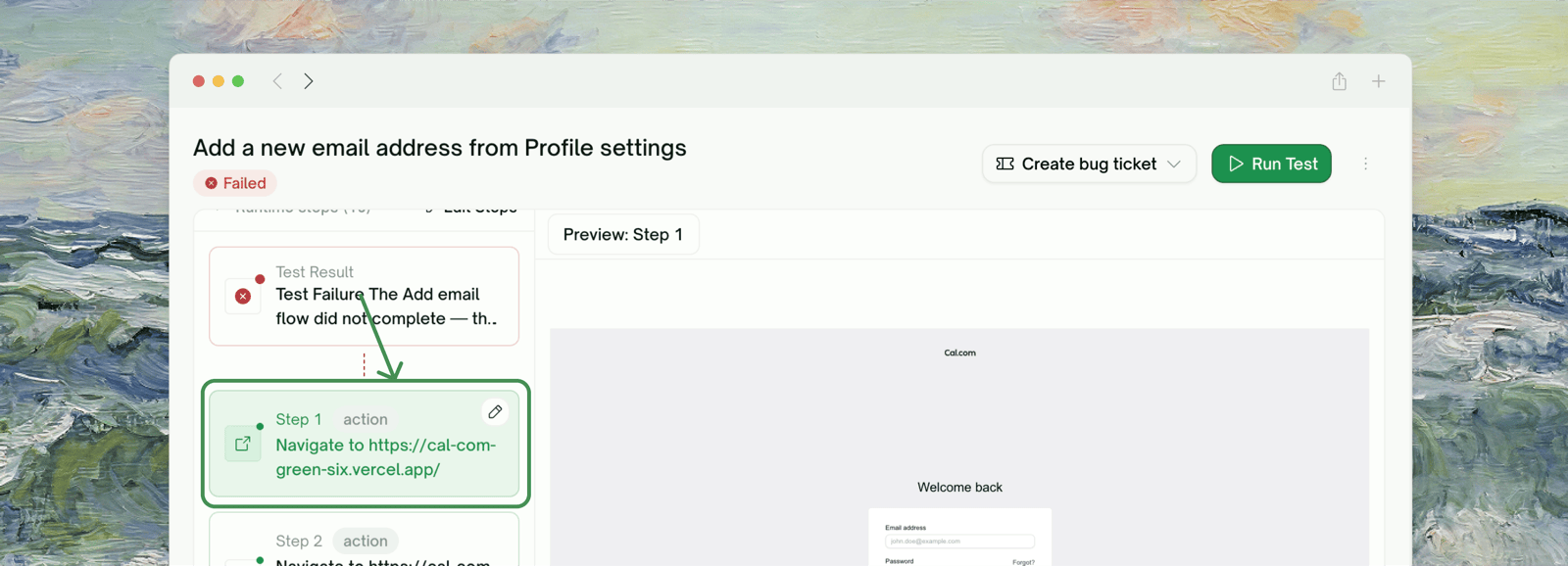
The Steps section always shows the most recent run of that test. To look at an older run, open it from Test Runs.
The Video and the Snapshot
The right pane has a Preview tab with the full recorded video and a Code tab with the test code. Clicking a step swaps the pane to that step’s HTML snapshot; click the Test Result block to return to the video. Use the video for a continuous run-through and the snapshots to pin down a single action.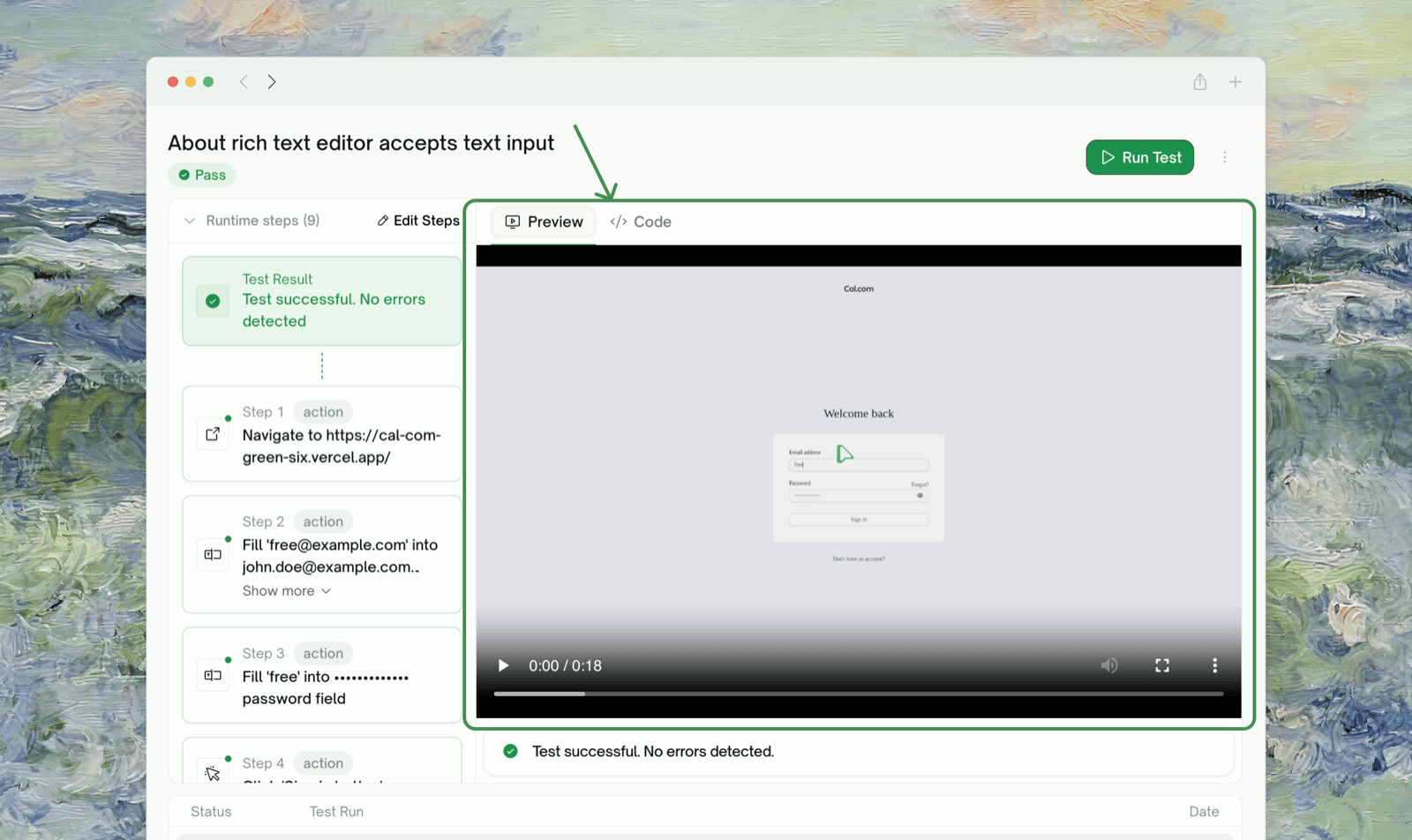
Failure Localization
The failed step is highlighted in the list. Click it to load its snapshot, then read the failure detail panel below.
UI tests show Error / Cause / Fix only. The Trace tab (a raw stack trace) appears for backend tests, which also show the response output for API calls.
Getting a Fix You Can Paste Into Your IDE
When you want to hand a fix straight to a coding agent (Claude Code, Cursor, or any LLM agent pointed at your codebase), use a copyable fix prompt: a repo-oriented prompt listing each problem found and what to change. For one failing test, click Copy fix prompt in the failure panel on this page. For the whole run or several failures:Test Report
The Fix prompt for your coding agent card, covering the whole run
Insights
Copy Fix Prompt on Issues to Fix, built from the grouped failures
When the Steps Look Fine but the Test Failed
Occasionally every step passes but the test fails. The usual causes:
The Error / Cause / Fix tabs below the Preview/Code area show the error that isn’t tied to a step.
Fixing the Test Itself
When a step is wrong (a bad description, a missing action, an assertion that doesn’t match your intent), rewrite the steps and re-run in one go with Edit Steps & Rerun. To refine a test conversationally instead, see Managing Test Cases.Edge Cases & Troubleshooting
The Steps section is empty for a test that ran
The Steps section is empty for a test that ran
It shows “Collecting steps…” while the run is in progress and “No steps recorded for this test run.” if the run produced no step records. Refresh once the status flips to Passed/Failed.
A step's HTML snapshot shows a blank page or a loading spinner
A step's HTML snapshot shows a blank page or a loading spinner
The snapshot was captured before the page settled, which is common on very fast or animation-heavy pages. The next step’s snapshot usually shows the settled state.
The video is missing but the steps are there
The video is missing but the steps are there
Recording failed for this run. The steps and snapshots still show what happened.
The steps show actions I didn't write into the test
The steps show actions I didn't write into the test
Auto-Heal ran and recovered, so the list shows what actually executed rather than the saved script. The saved test stays untouched unless you explicitly save updates. See Auto-Heal.
Where to Go Next
Test Detail
The full test page with error trace, refinement, and rerun
Edit & Rerun
Re-execute a test, or edit its steps and rerun